WordPress Website Security, Backups, Audits and Migration: The Complete Guide
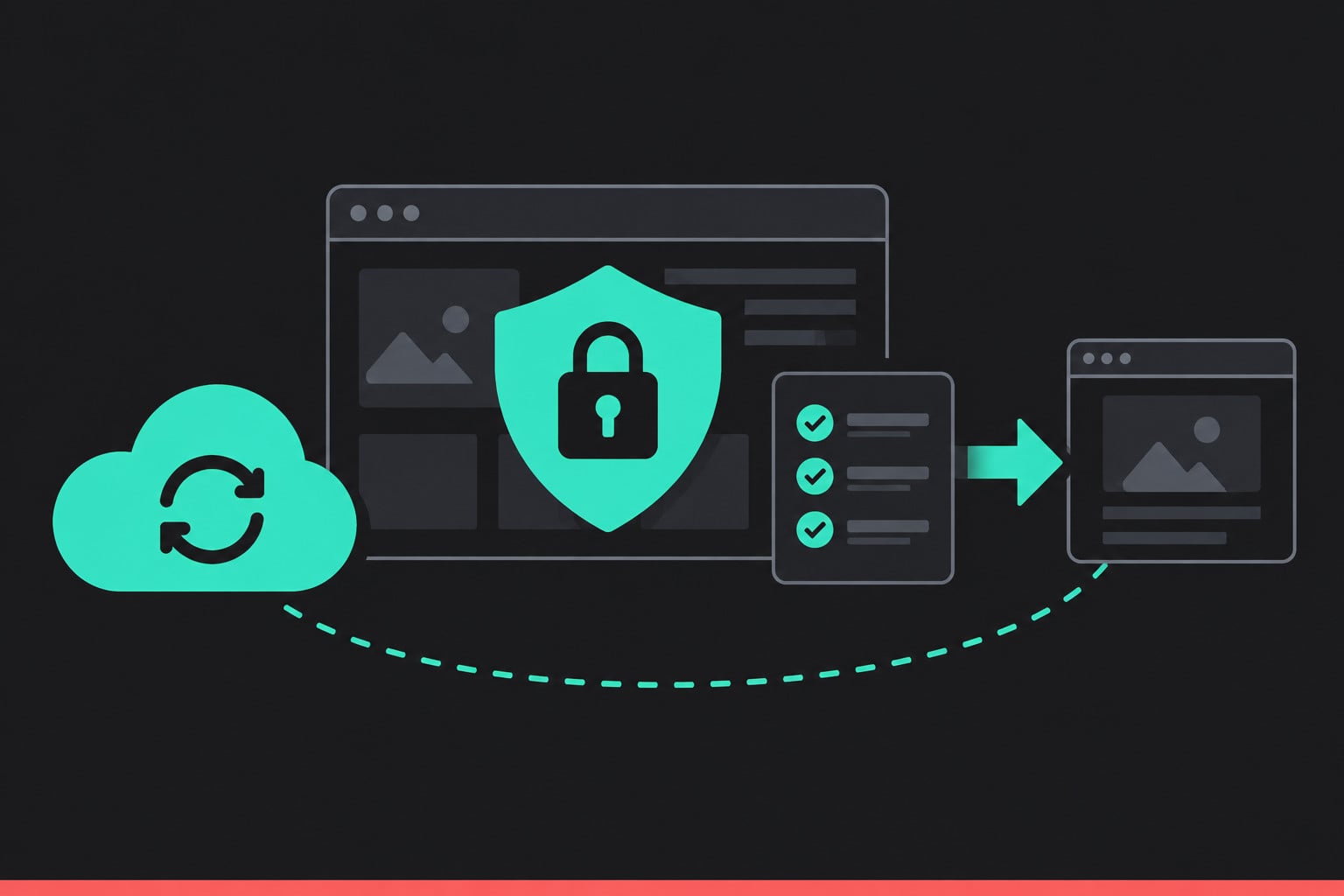
WordPress runs over 40% of the web (W3Techs), which makes it the biggest target on the internet by sheer numbers. That’s not a reason to avoid it: it’s a reason to treat security, backups, and regular health checks as routine maintenance, not an afterthought you deal with once something’s already gone wrong.
This covers the four things that actually protect a WordPress site: keeping it secure day to day, backing it up properly, auditing it regularly enough to catch problems early, and migrating it safely when the time comes. Each section is written to be acted on, not just read.
WordPress security: what actually matters
Most WordPress security advice focuses on the wrong things. Here’s what genuinely moves the needle, in order of impact.
Keep everything updated: core, theme, and every plugin. The majority of WordPress compromises exploit a known vulnerability in outdated software, not some clever novel attack. If a plugin hasn’t been updated in over a year, that’s a real risk signal on its own, so check whether it’s still actively maintained before relying on it.
Use strong, unique passwords and enforce them for every admin account. Weak or reused passwords are still one of the most common ways sites get compromised. A password manager and two-factor authentication on every admin account closes off a huge share of attacks for very little effort.
Limit login attempts and hide the login page from casual bots. Automated bots probe /wp-admin and /wp-login.php constantly. Rate-limiting login attempts and, where practical, changing the login URL cuts down brute-force traffic significantly.
Choose plugins carefully: fewer, better-maintained plugins beat many mediocre ones. Every plugin is code you didn’t write, running on your site. Before installing anything, check: when was it last updated, how many active installs does it have, and what do the reviews say about the developer’s responsiveness to security reports?
Use a security plugin, but understand what it actually does. A firewall/security plugin (Wordfence, Sucuri, and similar) blocks known attack patterns and scans for malware, but it’s a layer on top of the fundamentals above: not a replacement for keeping software updated.
Restrict file editing from the WordPress dashboard. By default, an admin can edit theme and plugin files directly in the browser. If an attacker gets admin access, that’s an easy way to plant malicious code. Disabling file editing (DISALLOW_FILE_EDIT in wp-config.php) removes one avenue.
Get an SSL certificate and force HTTPS everywhere. This is table stakes now, not optional: browsers actively flag non-HTTPS sites as "not secure," and Google treats HTTPS as a baseline ranking signal.
None of this needs to be complicated. A site with current software, strong unique passwords, 2FA on admin accounts, and a decent security plugin has already closed off the overwhelming majority of realistic attack paths.
Backups: the part everyone agrees matters and nobody checks often enough
A backup you’ve never tested restoring is a backup you don’t actually have: you just have a file that might work when you need it most.
What you need backed up: the full database (every post, page, product, and setting lives here) and the full file system (themes, plugins, uploads, media). Missing either one means an incomplete restore.
How often: daily, at minimum, for any site that changes regularly: new content, orders, form submissions. A weekly backup of a site that takes orders every day means losing up to a week’s transactions if something goes wrong.
Where they’re stored: off the same server as the live site. A backup sitting on the same server that just got compromised or crashed is a backup that goes down with it. Store copies somewhere separate: cloud storage, a different provider entirely.
How long they’re kept: most hosts and backup plugins default to keeping the last 7-30 days. That’s usually enough to recover from a hack or bad update, but if you need to recover something from three months ago, check your retention window covers it before you need it, not after.
The step almost everyone skips: actually restoring one, at least once. Not as part of an emergency: as a planned test, on a staging copy, so you know the process works and roughly how long it takes before you’re relying on it under pressure.
Website audits: what to check and how often
A website audit isn’t one thing: it’s several different checks that each catch different problems, and none of them substitute for the others.
Security audit (quarterly, or after any suspicious activity): outdated plugins/themes, unused plugins that are still installed, admin accounts that shouldn’t exist anymore, file permission issues, and a malware scan.
Performance audit (quarterly): page load speed (Core Web Vitals), image sizes (unoptimised images are still the single most common speed problem), unused plugins adding load, and hosting capacity relative to current traffic.
Content audit (every 6-12 months): pages that no longer reflect current pricing, services, or contact details; broken internal and external links; duplicate or overlapping content competing for the same search terms: the exact problem this page itself was built to fix.
SEO/technical audit (every 6-12 months): indexing status in Search Console, meta titles and descriptions, structured data, mobile usability, and any crawl errors.
Running all four at once, once or twice a year, with a lighter monthly check on updates and backups in between, catches most problems before they become visible to visitors.
Migrating a website without losing anything
Moving hosts, moving to a new domain, or rebuilding on a new theme all carry the same core risks: lost content, broken URLs, and a period of downtime that costs you visibility and enquiries.
Before you migrate:
- Take a full backup (database + files) and confirm it restores correctly, before you need it
- Document every URL that’s currently indexed: you’ll need to map old URLs to new ones
- Check DNS settings and note current nameservers/records so you can revert quickly if something goes wrong
- Pick a low-traffic window to minimise the impact of any downtime
During the migration:
- Migrate to a staging environment first and test everything there before it goes live: forms, checkout, page speed, mobile display
- Set up 301 redirects for any URL that’s changing, so visitors and search engines land on the right page instead of a dead one
- Update internal links that pointed to the old structure, don’t rely on redirects to carry all of them forever
After the migration:
- Submit the sitemap in Search Console and request indexing on key pages to speed up re-crawling
- Monitor for 404 errors in the days after launch and fix them fast: broken links compound the longer they sit
- Watch Search Console and analytics for a dip in traffic; some short-term fluctuation during a migration is normal, but it should recover within a few weeks, not months
Get in touch
If it’s been a while since anyone properly checked your site’s security, backups, or overall health, or you’re planning a migration and want it done without losing rankings or content, that’s exactly what we do for clients on an ongoing support plan. Get in touch and we’ll take a look.
Frequently Asked Questions
How often should I back up my WordPress website?
Daily, at minimum, for any site that takes orders, form submissions, or publishes content regularly. Store copies off the live server, and actually test a restore at least once so you know the process works before you need it under pressure.
What’s the most common way WordPress sites actually get hacked?
Outdated plugins, themes, or WordPress core with a known, published vulnerability: not some sophisticated novel attack. Keeping everything updated closes off the majority of real-world compromises on its own.
Do I need a security plugin if my host already offers security features?
Often yes, but check what your host actually covers first: some hosts handle server-level protection (firewalls, DDoS mitigation) but not application-level scanning for malware or vulnerable plugins on your specific site. The two layers complement each other rather than one replacing the other.
How long does a website migration usually take?
For a straightforward WordPress site, migrating to new hosting typically takes a few hours to a day, with DNS propagation adding up to 24-48 hours before everyone worldwide sees the new location. Migrating to a new domain or theme, with proper redirect mapping, usually takes longer: plan for at least a few days including testing.
How do I know if my website has already been compromised?
Warning signs include unexpected redirects, new admin users you didn’t create, unfamiliar files in your file system, your site being flagged by Google Safe Browsing, or your host disabling the site without warning. If you suspect a compromise, take a backup of the current state for forensics, then restore from a clean backup taken before the compromise and change every password.

Gordon Sheppard
Article category:
